
AirPort Express Keeps Disconnecting? Fix It on Mac
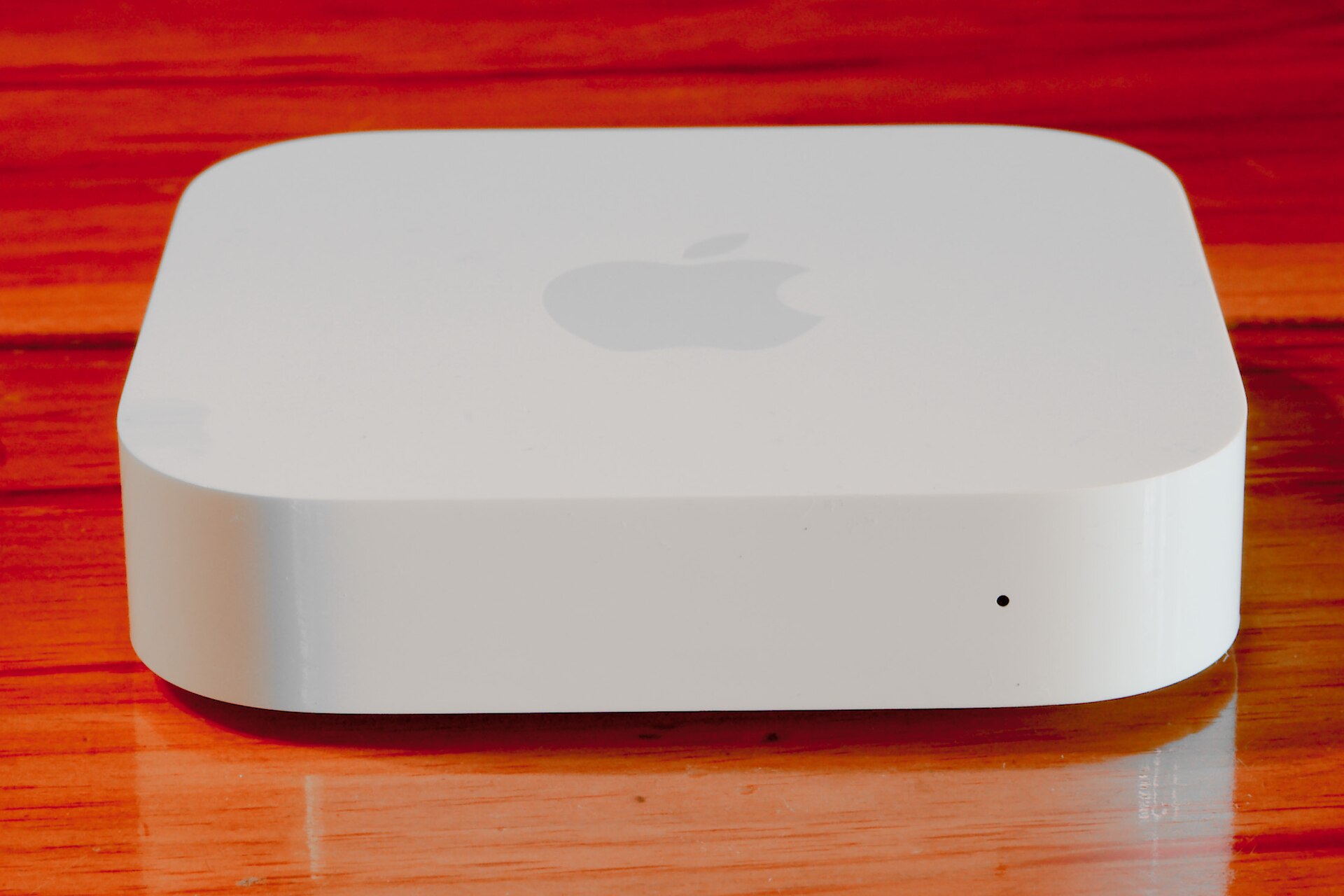
If your AirPort Express only works after a daily restart, downgrading its firmware may restore a reliable connection.
The AirPort Express problem that would not go away
About a year ago, a client called me about an AirPort Express that kept dropping its connection. She used the AirPort Express, or AE, to make a USB printer available over Wi-Fi. The printer would work after she unplugged the AE or restarted it with AirPort Utility. By the next day, it would disappear again.
When I first met this client, she had two printers. One was connected to an AirPort Express. The other used a long USB cable. I added a second AirPort Express so both printers could be reached over her network without cables running across the room.
During setup, AirPort Utility offered firmware version 7.8.1. Firmware is the small piece of built-in software that controls the AirPort Express. I updated the new AE, then updated the original one so they matched.
The Brother printer worked from her Windows computer and from its iPad app. The second printer was a Kyocera. Its iPad app never worked properly, but that was not a major issue because she mainly used that printer for scanning.
A few weeks later, her internet provider replaced a dead router. Internet access returned, but the original AirPort Express began disappearing from the Brother iPad app. Restarting the AE brought it back immediately. That made the new router look suspicious, but the fact that the connection failed again every day pointed somewhere else.
What finally fixed it
My first searches mostly found reports about AirPort Express music streaming. I found very little about printers. A year later, I searched again without concentrating on printing. That was the breakthrough. Many people reported general connection trouble after installing firmware 7.8.1.
Apple discontinued the AirPort line years ago, so waiting for a new firmware release did not seem practical. I found reports from users who restored reliable connections by going back to older firmware. I downgraded both of my client’s AirPort Express units to version 7.6.3. The daily dropouts stopped, and she no longer had to crawl under a desk to unplug anything.
This is a workaround for older equipment, not a universal fix. Version 7.6.3 is old and does not contain every later security improvement. If your AirPort Express is your main internet router, replacing it with supported hardware is the safer long-term answer. If it is only providing access to a printer or speaker behind another router, this downgrade may help you keep it useful.
How to downgrade AirPort Express firmware on a Mac
Keep the AirPort Express plugged into power during this process. The status light may blink, and the network may disappear briefly. That is normal. Do not unplug the device while firmware is being installed.
Your Mac must have AirPort Utility. It is included with macOS and is normally stored inside the Utilities folder.
- Connect your Mac to the same network as the AirPort Express.
- Open Finder by clicking the blue smiling-face icon in the Dock.
- Click Applications in the Finder sidebar.
- Open the Utilities folder.
- Double-click AirPort Utility.
- Click the picture of the AirPort Express you want to downgrade.
- Click Edit in the information box that appears.
Edit
- Enter the AirPort Express password if AirPort Utility requests it.
- Open the Base Station menu at the top of the Mac screen.
- Choose Upload Firmware from the Base Station menu.
- Open the Firmware Version menu in the window that appears.
- Choose version 7.6.3 if it is listed.
- Click OK to begin installing the selected firmware.
OK
- Leave the AirPort Express connected to power while it restarts.
Test the connection
Give the AirPort Express a few minutes to finish restarting. A green status light usually means it has rejoined the network successfully.
If you have more than one AirPort Express running firmware 7.8.1, repeat the downgrade for the other unit. That is what I did for my client so both devices were using the same version.
An AirPort Express USB connection does not automatically give every printer full Apple AirPrint support. You may still need the printer manufacturer’s iPhone or iPad app, as my client did with her Brother printer.
- Open AirPort Utility again and confirm that the AirPort Express appears without an error.
- Select the AirPort Express and check that its version is now 7.6.3.
- Open the printer app on your iPad or computer.
- Print one test page.
- Check the printer again the following day to confirm that it remains available.
If version 7.6.3 is not available
AirPort Utility only shows firmware versions Apple still makes available for that particular model. Do not download unofficial firmware from a random website. Installing the wrong file can leave the AirPort Express unusable.
If 7.6.3 does not appear, choose an older version offered by AirPort Utility, or return to the latest version and plan to replace the AirPort Express. Also remember that a printer disappearing immediately after a router replacement can be a separate network setup issue. The downgrade is most relevant when the AE works after every restart and then repeatedly drops out later.
- Choose only a firmware version offered inside AirPort Utility.
Bottom line
Firmware 7.8.1 was the source of my client’s daily AirPort Express connection drops. Downgrading to 7.6.3 stopped the restarts and made wireless printing dependable again, although replacing this discontinued hardware remains the best long-term plan.
Need a hand?
If you'd rather someone just take care of it, PcFixin' can help — residential or commercial.
About PcFixin'