
Use Your Mac Without a Mouse: Full Keyboard Access
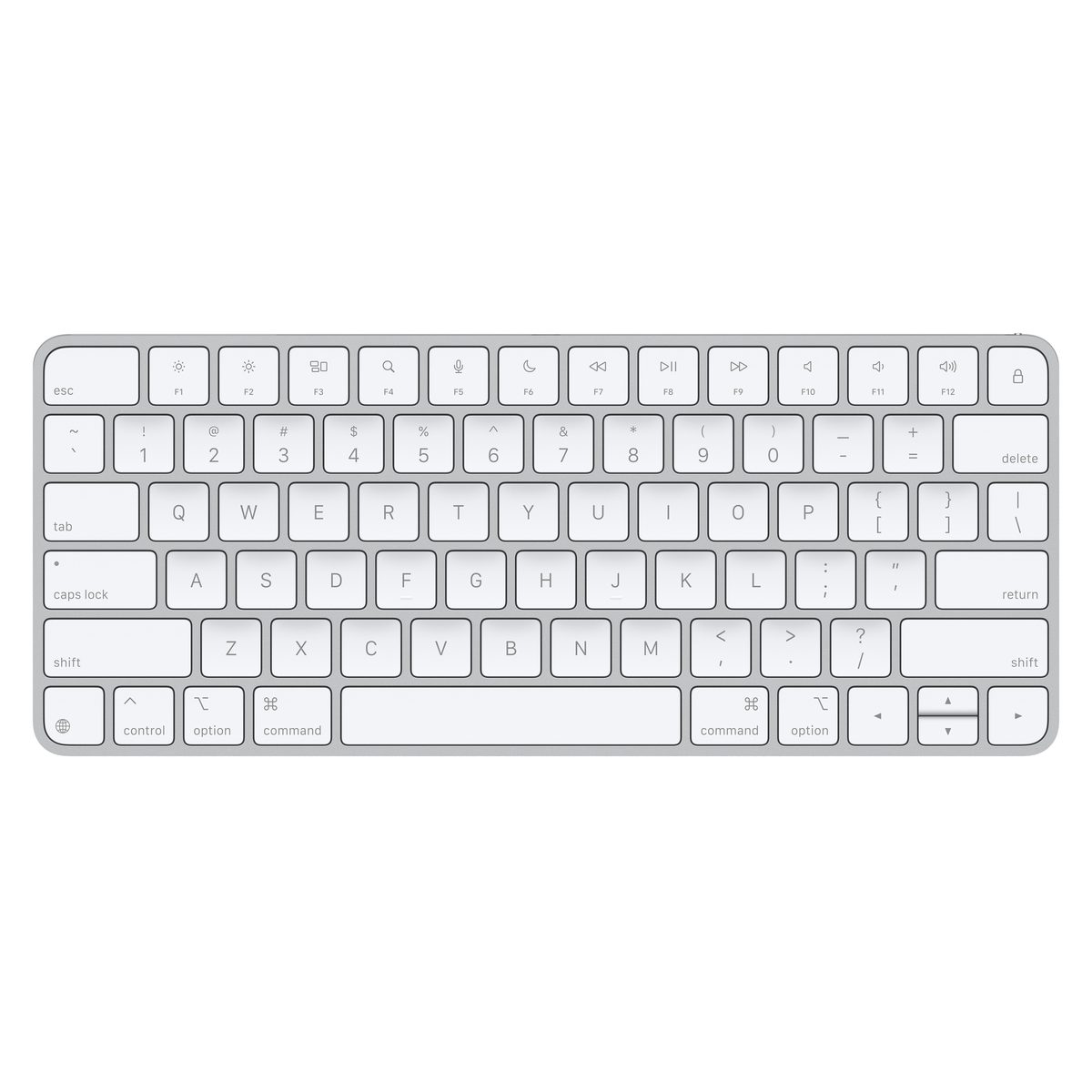
Turn on Full Keyboard Access to move through Mac buttons, menus, dialog boxes, and apps using only your keyboard.
What Full Keyboard Access does
A mouse that stops working can make your Mac feel completely out of reach. It is not. Your Mac has an overlooked setting called Full Keyboard Access that lets you move between onscreen controls with the keyboard.
As you move, macOS places a visible outline around the selected item. This is called the focus indicator. Think of it as your keyboard-controlled pointer: wherever the outline appears is where your next keyboard command will go.
These instructions assume you use macOS Ventura 13 or later. Apple uses the name System Settings on these versions. On macOS Monterey 12, open System Preferences instead; the appearance may differ, but look under Accessibility and Keyboard for Full Keyboard Access.
Turn on Full Keyboard Access
If your mouse or trackpad still works, use it for these setup steps. After you turn on the setting, you can practice navigating without touching it.
- Click the Apple menu in the upper-left corner of the screen.
- Click System Settings.
- Click Accessibility in the System Settings sidebar.
- Click Keyboard in the Accessibility controls.
- Turn on the switch beside Full Keyboard Access.
Learn the keys that do the moving
You do not need to memorize everything at once. Start with Tab, Shift-Tab, and the Space bar. Those three keys handle a surprising amount of Mac navigation.
The Tab key is usually above Caps Lock. Shift is the key marked with an upward-pointing arrow. A focused item may have a colored border or another visible highlight, depending on your macOS appearance settings.
- Press Tab once to move the focus indicator to the next onscreen control.
- Press Tab several more times to watch the focus move forward through the window.
- Press Shift-Tab to move the focus back to the previous control.
- Press the Space bar to activate the focused button, checkbox, or switch.
- Press an arrow key to move within an open menu, list, or group of choices.
- Press Return to choose the currently highlighted menu command or option.
- Press Escape to close an open menu or dismiss something you do not want.
Reach the menu bar and switch apps
The menu bar is the strip across the top of the screen containing the Apple menu and app menus such as File and Edit. On many Mac keyboards, the top-row keys also control brightness, sound, and other hardware features. That is why you may need to include the Fn key in the menu-bar shortcut.
- Press Control-F2 to place keyboard focus in the menu bar.
- Press Fn-Control-F2 instead if the first shortcut changes a hardware setting.
- Press the Left Arrow or Right Arrow key to move between menu names.
- Press the Down Arrow key to open the selected menu.
- Press Command-Tab to display the app switcher.
- Keep holding Command while pressing Tab to highlight the app you want.
- Release Command to open the highlighted app.
What to do if the focus seems stuck
Some windows divide their controls into sections, such as a sidebar, toolbar, and main area. Tab may appear to circle within only one section. That does not mean you broke anything.
- Press Control-Tab to move the focus to the next section of the window.
- Press Control-Shift-Tab to move the focus to the previous section.
- Press Escape once if a menu or pop-up is capturing your keyboard commands.
Know the one important limitation
Full Keyboard Access selects interface controls. It does not move the arrow-shaped pointer pixel by pixel. Tasks such as drawing, dragging an object, or clicking a pointer-only target may still require pointer control.
For those jobs, macOS has a separate accessibility feature called Mouse Keys. It lets the keyboard control the pointer. You can find it under System Settings, Accessibility, and Pointer Control. You do not need Mouse Keys for ordinary buttons, menus, settings, or dialog boxes.
Bottom line
Turn on Full Keyboard Access, then use Tab to move, Shift-Tab to go back, and Space to activate the focused control. With those few keys, you can calmly take control of your Mac even when the mouse cannot help.
Sources
Steps grounded in the guidance above; wording and walkthrough are PcFixin' originals.
Need a hand?
If you'd rather someone just take care of it, PcFixin' can help — residential or commercial.
About PcFixin'