
Fix INACCESSIBLE_BOOT_DEVICE After Partition Changes
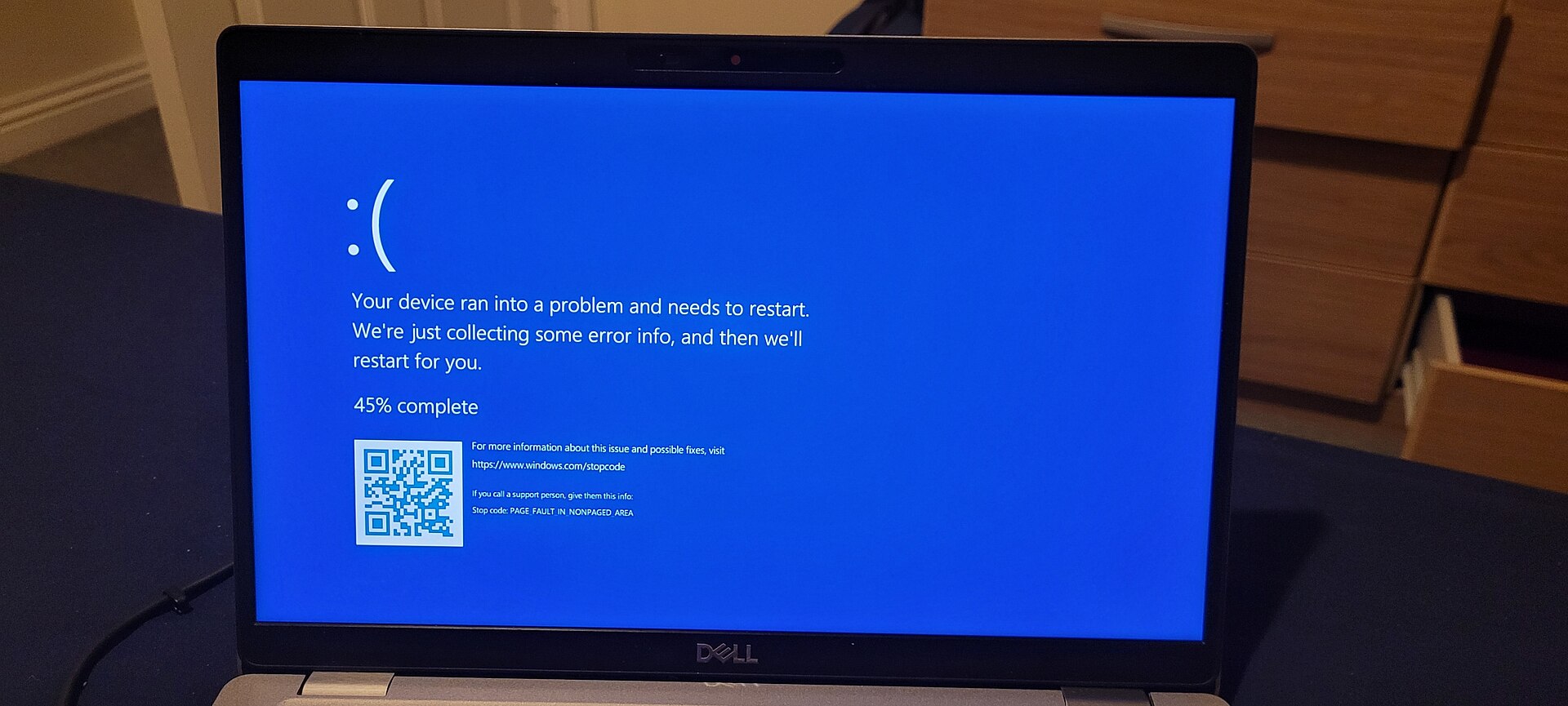
Repair Windows startup files from the Recovery Environment after deleting or resizing a partition, without immediately resetting or wiping the PC.
What probably happened
The INACCESSIBLE_BOOT_DEVICE blue screen means Windows cannot reach the partition it normally starts from. After a partition is deleted or resized, drive references in the Boot Configuration Data, or BCD, can point to the wrong place. The BCD is a small set of instructions that tells the computer where Windows lives.
The steps below assume a Windows 10 or Windows 11 PC using modern UEFI startup. Most PCs sold during the Windows 10 and 11 era use UEFI. These steps can repair boot information, but they cannot restore a Windows partition that was actually deleted.
Do not use Diskpart commands containing clean, delete, create, or format. Those commands can erase data. If the large Windows partition is missing, stop and consider professional data recovery before making more changes.
- Disconnect USB drives, memory cards, and external hard drives from the PC.
- Turn on the PC and interrupt startup three times by holding its power button when the Windows logo appears.
- Allow the PC to enter Automatic Repair on the next startup.
Try the safe automatic repair first
Windows Recovery Environment, shortened to WinRE, is the troubleshooting screen that works even when the normal desktop will not open. Button names can vary slightly between Windows versions, but the route through WinRE is generally the same.
- Select Troubleshoot on the recovery screen.
- Select Advanced options.
- Select Startup Repair.
- Select your Windows account if Windows asks you to choose one.
- Enter the account password if requested.
- Wait for Startup Repair to finish.
- Restart the PC if Startup Repair says it completed a repair.
Find the Windows and EFI partitions
If Startup Repair did not work, return to Advanced options and use Command Prompt. This is the black text window. It looks intimidating, but you will enter only specific commands.
Drive letters often change inside WinRE. Your normal C: drive might appear as D: or E:. Confirming the correct letters is the most important part of this repair.
- Select Command Prompt from Advanced options.
- Type `diskpart` and press Enter.
- Type `list disk` and press Enter.
- Confirm that your internal drive appears in the list.
- Type `list volume` and press Enter.
- Look for a large NTFS volume that is likely to contain Windows.
- Look for a small FAT32 volume, usually a few hundred megabytes, labeled System or hidden; this is normally the EFI startup partition.
- Type `exit` and press Enter.
- Type `dir C:\Windows` and press Enter.
- Try `dir D:\Windows`, then other likely letters, until one displays the Windows folder contents.
Rebuild the UEFI startup files
In the commands below, replace W: with the letter where you found the Windows folder. For example, use D: if `dir D:\Windows` worked.
You must also give the hidden EFI partition a temporary drive letter. The example uses S:. If no small FAT32 volume exists, stop here. Do not create or format one unless you have a verified backup and more advanced guidance.
- Type `diskpart` and press Enter.
- Type `select volume N` with the EFI volume number in place of N, then press Enter.
- Type `assign letter=S` and press Enter.
- Type `exit` and press Enter.
- Type `md W:\temp` with your Windows drive letter in place of W, then press Enter.
- Type `bcdedit /export W:\temp\bcdbackup` with the same Windows drive letter, then press Enter.
- Type `bcdboot W:\Windows /s S: /f UEFI` with the correct Windows letter, then press Enter.
- Wait for the message `Boot files successfully created.`
- Type `exit` and press Enter.
- Select Continue to try starting Windows normally.
If Windows still shows the same blue screen
Return to Command Prompt in Advanced options. Microsoft recommends rebuilding the BCD when its store cannot be opened or its Windows entry is missing. This search can take several minutes.
- Type `bootrec /rebuildbcd` and press Enter.
- Type `Y` and press Enter if the tool finds your Windows installation and asks to add it.
- Type `chkdsk W: /f` with your Windows drive letter in place of W, then press Enter.
- Wait until the disk check reaches 100 percent.
- Restart the PC after the disk check finishes.
When to stop
Stop if Diskpart does not show the internal drive, the Windows volume is missing, or the drive reports serious hardware errors. Startup commands cannot repair a disconnected, failing, or deleted system partition. Repeated experiments may also make deleted files harder to recover.
If BitLocker asks for a recovery key, obtain the key before continuing. BitLocker is Windows drive encryption, and the recovery tools cannot read a locked Windows partition without its key.
Bottom line
A partition change can leave Windows intact while its startup map points to the wrong place. Identifying the real Windows volume and rebuilding the UEFI boot files can bring the PC back without a reset or drive wipe.
Sources
Steps grounded in the guidance above; wording and walkthrough are PcFixin' originals.
Need a hand?
If you'd rather someone just take care of it, PcFixin' can help — residential or commercial.
About PcFixin'