How to Access BIOS or UEFI on a Windows PC
Learn two safe ways to open your computer’s BIOS or UEFI settings, check your hardware, and choose a startup device.
What the BIOS does
The BIOS, short for Basic Input/Output System, is built-in software that checks your computer’s basic hardware when you turn it on. It identifies things such as the memory, hard drive or solid-state drive, keyboard, and system date and time. It then points the computer toward the device that contains Windows or another operating system.
Most newer computers use UEFI, which stands for Unified Extensible Firmware Interface. UEFI is the modern replacement for the traditional BIOS, but nearly everyone still calls it the BIOS. If your screen says UEFI instead of BIOS, you are in the right place.
You may need to access this area after upgrading the computer’s memory, also called RAM, to confirm that the correct amount is detected. The same applies after installing a larger drive. You may also need it when installing Windows from a USB thumb drive or changing which device starts first.
The BIOS normally works quietly with its default settings, so most people never see it. That is a good thing. Still, knowing how to open it is one of those useful computer moves that can make you feel like the technician in the room.
Before you begin
Opening the BIOS does not erase your files or change Windows. Settings only change if you deliberately edit and save them. Even so, I recommend changing only the setting you came to change. Options such as Secure Boot, TPM, SATA mode, and boot mode can stop Windows from starting if they are changed without a specific reason.
If your computer uses BitLocker device encryption, changing certain security settings may cause Windows to request a BitLocker recovery key. Simply looking around is normally safe, but do not change security settings unless you have the recovery key and reliable instructions.
- Save any document or other work that is currently open.
- Close every open program.
Method 1: Open UEFI from Windows 11
This is usually the easiest method because you do not have to press a key at exactly the right moment. It works when Windows starts normally and the computer supports UEFI.
- Open the Start menu.
- Click Settings.
Settings
- Click System.
System
- Click Recovery.
Recovery
- Click Restart now beside Advanced startup.
Restart now
- Click Restart now again when Windows asks for confirmation.
Restart now
- Select Troubleshoot on the blue Choose an option screen.
Troubleshoot
- Select Advanced options.
Advanced options
- Select UEFI Firmware Settings.
UEFI Firmware Settings
- Select Restart.
Restart
Method 2: Open UEFI from Windows 10
Windows 10 provides the same route, although the first few Settings pages have different names.
- Open the Start menu.
- Click Settings.
Settings
- Click Update & Security.
Update & Security
- Click Recovery.
Recovery
- Click Restart now under Advanced startup.
Restart now
- Select Troubleshoot after the computer restarts.
Troubleshoot
- Select Advanced options.
Advanced options
- Select UEFI Firmware Settings.
UEFI Firmware Settings
- Select Restart.
Restart
Method 3: Press the BIOS key during startup
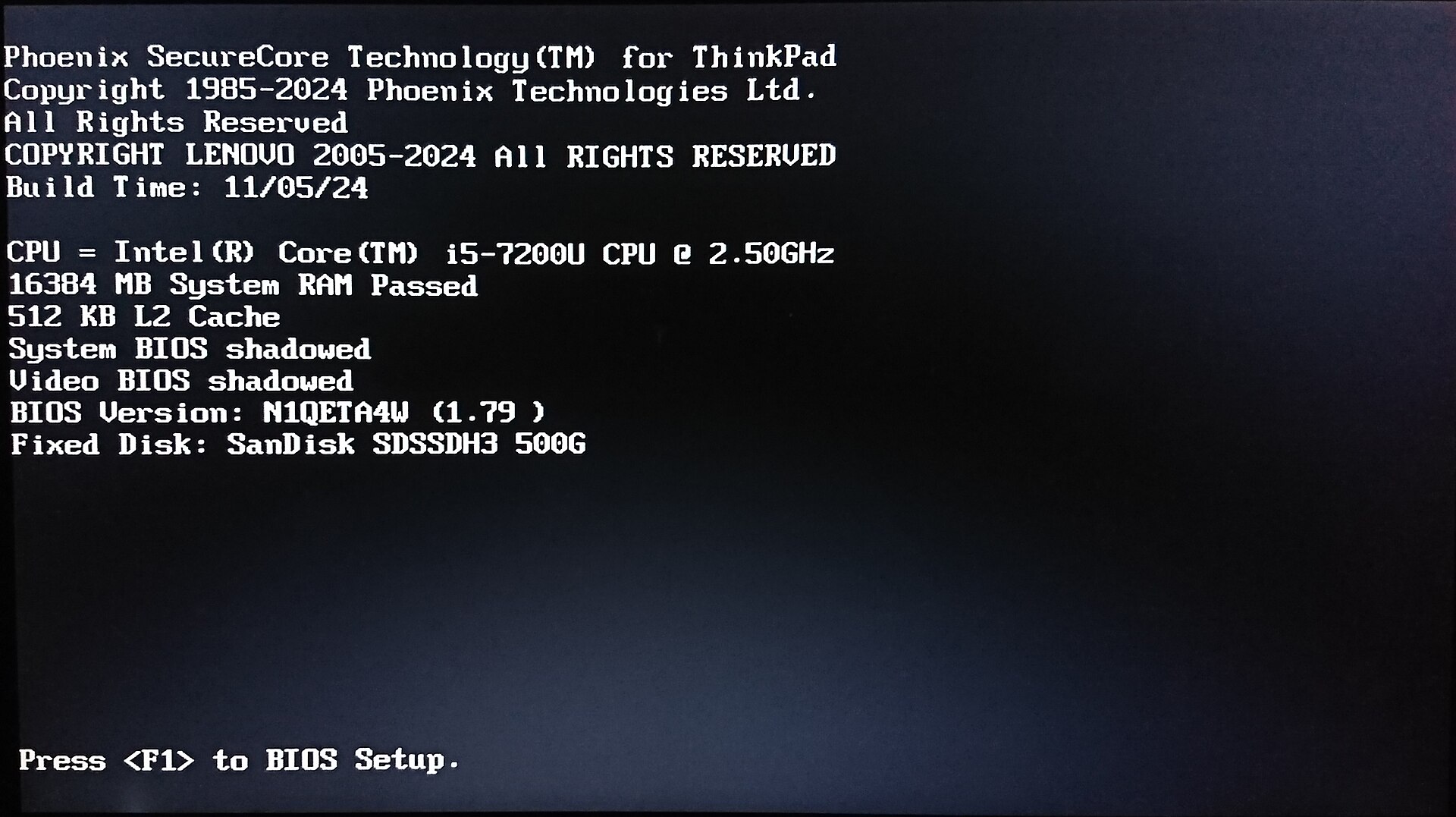
Use this method if Windows will not start or UEFI Firmware Settings is missing. The required key depends on the computer maker. F2 and Delete are the most common. A function key is one of the keys labeled F1 through F12 along the top of the keyboard.
Dell commonly uses F2. Acer and ASUS commonly use F2 or Delete. Lenovo commonly uses F1 or F2. MSI commonly uses Delete. HP often uses Esc to open a Startup Menu, followed by F10 for BIOS Setup. Your computer may be different, so watch the first screen for a message such as “Press F2 to enter Setup.”
- Shut down the computer completely.
- Press the computer’s power button.
- Immediately tap the correct BIOS key about twice per second.
- Stop tapping when the BIOS or UEFI screen appears.
If the BIOS screen does not appear
Do not worry if Windows starts instead. That usually means the key was pressed too late or the computer uses a different key. Shut down and try again. On some laptops, you may need to hold the Fn key while tapping the function key.
Many computers also have a separate one-time Boot Menu. This lets you start from a USB drive without changing the permanent boot order. F12, F9, F11, and Esc are common Boot Menu keys, depending on the manufacturer. This is often the cleaner choice when installing Windows from a thumb drive.
- Check the computer maker’s support page for your model’s BIOS or Setup key.
- Repeat the startup process with the listed key.
- Use the one-time Boot Menu instead when you only need to start from a USB drive once.
What to do inside the BIOS
Traditional BIOS screens usually use the arrow keys to move, Enter to select, and Esc to go back. Newer UEFI screens may also support the mouse. The exact layout varies, so look for headings such as Information, Main, Storage, Memory, or Boot.
To check a RAM upgrade, compare the displayed memory total with the amount installed. To check a new drive, look for its model number or capacity under Storage. Small differences in displayed drive capacity are normal because drive makers and computers calculate space differently.
If you only wanted to inspect the settings, leave without saving. The exit option may be called Exit Without Saving, Discard Changes and Exit, or something similar. If you intentionally changed one setting, choose Save Changes and Exit. The computer will then restart.
- Open the Information, Main, Memory, or Storage page to check the detected hardware.
- Open the Boot page only if you need to review the startup order.
- Choose Exit Without Saving if you did not intentionally change anything.
Exit Without Saving
- Choose Save Changes and Exit only when you made a required change.
Save Changes and Exit
Bottom line
You can access the BIOS or UEFI either through Windows Advanced startup or by tapping the computer maker’s setup key as the PC turns on. Take your time, change only what you understand, and you will be able to check hardware or choose a startup device with confidence.
Need a hand?
If you'd rather someone just take care of it, PcFixin' can help — residential or commercial.
About PcFixin'