
Windows 11 Auto-Hide Taskbar Fix for Multiple Monitors
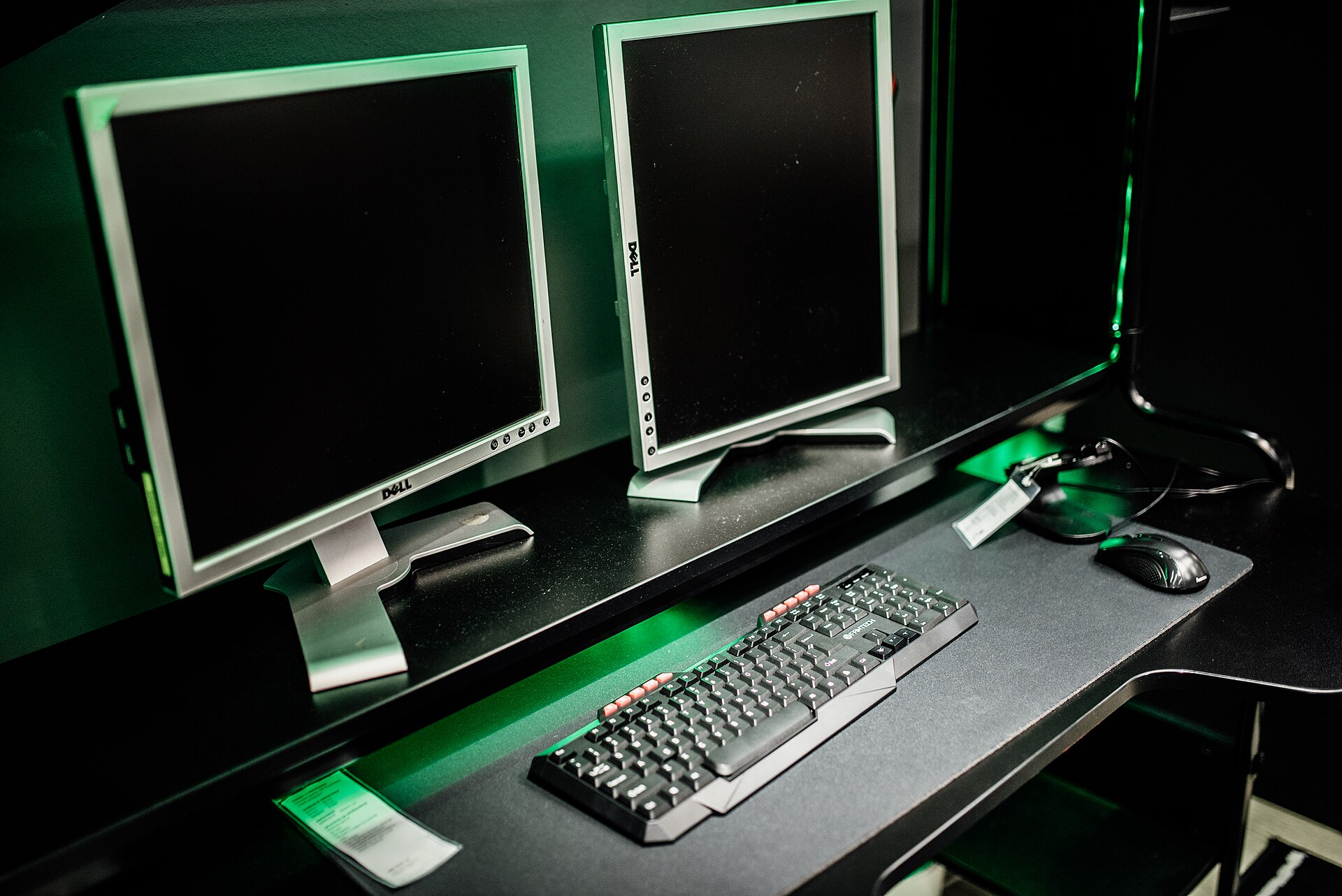
Put the Windows 11 taskbar on the correct monitor, restore auto-hide, and stop it from covering your work.
Why the taskbar seems to have a mind of its own
Windows 11 uses one monitor as the main display. That screen normally controls where the primary taskbar, Start menu, and notification area appear. If Windows chooses the wrong main display, the taskbar can seem to jump screens.
There is also a separate setting that can place a taskbar on every monitor. Auto-hide then affects that multi-monitor arrangement. The cleanest fix is to confirm the main display first, choose where taskbars should appear, and reset auto-hide.
These directions assume a current version of Windows 11. Microsoft occasionally changes the wording slightly, but the Settings paths remain similar.
Choose the monitor that should own the taskbar
Start by telling Windows which screen is your main display. Do not worry if the numbered monitor boxes look confusing. The Identify button will show a large number on each real screen.
- Press Windows key+I to open the Settings app.
- Select System in the left column.
- Select Display.
- Select Identify to show a number on each monitor.
- Click the numbered monitor box that represents the screen where you want the main taskbar.
- Expand Multiple displays if its options are hidden.
- Select Make this my main display.
Decide whether every monitor needs a taskbar
Now choose between one taskbar and several. Turning off Show my taskbar on all displays keeps the taskbar on your newly selected main screen. Turning it on places a taskbar on each connected display.
For the least confusing setup, try one taskbar first. You can always restore taskbars on the other screens later.
- Right-click an empty part of the taskbar.
- Select Taskbar settings from the menu.
- Expand Taskbar behaviors near the bottom of the page.
- Clear Show my taskbar on all displays if you want the taskbar only on the main monitor.
Reset the auto-hide setting
Sometimes the auto-hide box is selected even though the taskbar is still visible. Switching the feature off and back on gives Windows a fresh instruction. This is safe and does not remove your pinned apps.
- Clear Automatically hide the taskbar under Taskbar behaviors.
- Wait until the taskbar settles into its normal visible position.
- Select Automatically hide the taskbar again.
- Move the pointer away from the bottom edge of every monitor.
- Move the pointer to the bottom edge of the main monitor to reveal the hidden taskbar.
If the taskbar still refuses to hide
An open menu or an app asking for attention can hold the taskbar open. Work through these small checks before changing more settings.
- Press Esc once to close an open Start menu, search panel, or taskbar pop-up.
- Open any taskbar app icon that is flashing or visibly highlighted.
- Close any message or confirmation box shown by that app.
- Move the pointer into the middle of the desktop to test auto-hide again.
- Restart the computer if the taskbar remains stuck.
One Windows 11 limitation to know
Windows 11 provides one built-in Automatically hide the taskbar setting rather than a separate auto-hide switch for each monitor. You can choose whether the taskbar appears on all displays, but you cannot normally tell it to auto-hide on one monitor while remaining permanently visible on another.
If the taskbar returns to the wrong screen after unplugging a monitor or docking a laptop, revisit Display settings. Windows may have reassigned the main display when the monitor arrangement changed.
Bottom line
Set the correct main display, choose whether taskbars appear on every monitor, and toggle auto-hide off and on. You have now taken control of a multi-monitor setting that Windows does not explain very clearly.
Sources
Steps grounded in the guidance above; wording and walkthrough are PcFixin' originals.
Need a hand?
If you'd rather someone just take care of it, PcFixin' can help — residential or commercial.
About PcFixin'