
Windows Update Locked You Out? Remove It in Recovery Mode
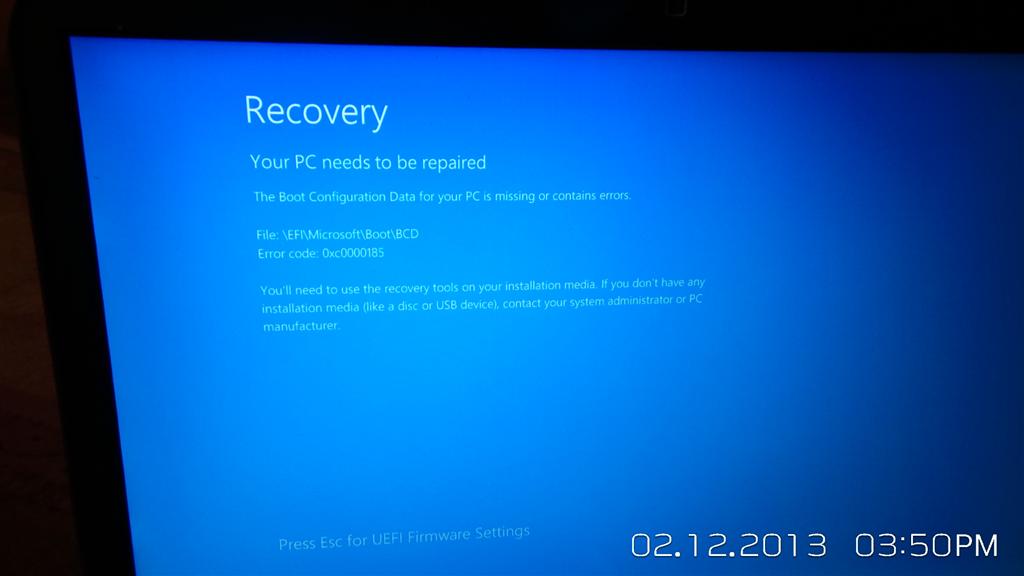
Use Windows Recovery Environment to safely undo the latest troublesome update when Windows 10 or 11 will not start normally.
Before you begin
A Windows update can occasionally leave a PC stuck at startup, caught in a restart loop, or unable to reach the sign-in screen. That looks serious, but you may not need to reset or reinstall Windows.
The gentler fix is to remove the newest update from Windows Recovery Environment, also called Windows RE. This is a repair area that works even when regular Windows does not. Removing an update normally leaves your personal files and installed apps alone.
These instructions apply to Windows 11 and Windows 10. The wording may vary slightly between versions. If the computer is still showing an update percentage that is moving, give it time. Use the recovery steps when Windows repeatedly fails to start or the percentage has clearly stopped changing for a long time.
Open Recovery Mode from the sign-in screen
Use this route if you can reach the Windows sign-in screen. You do not need to sign in.
- Select the Power icon in the lower-right corner of the sign-in screen.
- Hold down the Shift key on your keyboard.
- Select Restart while continuing to hold Shift.
- Release Shift when the blue Choose an option screen appears.
Open Recovery Mode when Windows will not reach sign-in
Windows may open recovery mode automatically after several failed starts. If it does not, you can deliberately interrupt startup. This looks intimidating, but the goal is simply to make Windows notice that normal startup is failing.
Do not use this method while an update percentage is still moving. Begin with the PC completely turned off.
- Press the computer's power button to start it.
- Hold the power button until the computer turns off when the Windows logo or spinning dots appear.
- Press the power button again.
- Hold the power button until the computer turns off when startup begins again.
- Press the power button once more.
- Wait for Preparing Automatic Repair or the recovery screen to appear.
- Select Advanced options if Windows displays an Automatic Repair screen.
Remove the latest Windows update
You should now see a blue recovery menu. Take your time here. The large buttons are repair tools, not signs that your files have disappeared.
Windows may ask you to select an administrator account and enter its password. Use the account password, not the short PIN normally entered at sign-in.
You may see two removal choices. A quality update is the smaller, regular update containing security patches and fixes. A feature update is a larger upgrade that changes the Windows version. If the trouble began after an ordinary monthly update, try the quality update first.
- Select Troubleshoot on the Choose an option screen.
- Select Advanced options.
- Select Uninstall Updates.
- Select Uninstall latest quality update if the problem followed a routine Windows update.
- Select your Windows administrator account if Windows requests one.
- Enter the password for that account if requested.
- Select Uninstall quality update to confirm the removal.
- Wait while Windows removes the update.
- Select Done when the removal finishes.
- Select Continue to try starting Windows normally.
If the quality update will not uninstall
Some Windows updates cannot be removed. The uninstall files may also have been cleaned up already. If the button is missing or Windows reports that removal failed, return to Uninstall Updates.
Choose Uninstall latest feature update only if the startup problem began immediately after a major Windows version upgrade. Do not repeatedly remove unrelated updates just to see what happens. If neither option works, System Restore from Advanced options may be the next reasonable repair because it can return system settings to an earlier restore point.
- Return to the Advanced options screen.
- Select Uninstall Updates again.
- Select Uninstall latest feature update only if a major version upgrade caused the problem.
After you get back into Windows
Once the desktop appears, make sure your important documents are backed up. Then temporarily pause updates so Windows does not immediately reinstall the same troublesome update. In Windows 11, open Settings, select Windows Update, and use Pause updates. The Windows 10 path is also under Settings and Windows Update.
Pausing is temporary, not a permanent fix. Security updates help protect the PC, so resume updates after Microsoft or your computer manufacturer provides a corrected release. You just performed a real recovery operation without wiping the machine—and that is a solid win.
- Open Settings after Windows starts normally.
- Select Windows Update.
- Select Pause updates for a short period.
Bottom line
When a recent update stops Windows from starting, open Windows Recovery Environment and choose Troubleshoot > Advanced options > Uninstall Updates. Start with the latest quality update, then let Windows restart normally.
Sources
Steps grounded in the guidance above; wording and walkthrough are PcFixin' originals.
Need a hand?
If you'd rather someone just take care of it, PcFixin' can help — residential or commercial.
About PcFixin'